

Last updated: October 2026
By Preet Dass – Quick Scrap Metal
Updated for the next publication cycle
What Does E-Waste Computer Recycling Include?
E-waste computer recycling is the collection, sorting and downstream processing of unwanted computers and accessories. The purpose is to recover usable materials and components while keeping electronics, batteries and other controlled items out of ordinary garbage.
Typical computer e-waste includes desktop towers, laptops, all-in-one computers, servers, monitors, keyboards, mice, power supplies, chargers and mixed cables. A current local collection listing for Quick Scrap Metal identifies desktop and laptop computers, CRT and flat-panel monitors, mixed batteries, mice, keyboards and cables among the electronics that may be handled there. Acceptance categories can change, so ask before bringing unusual, damaged or unusually large equipment.
Computers contain steel, aluminum, copper, circuit boards, plastics and other recoverable materials. Recycling does not mean every component becomes a new computer. Equipment is sorted and sent through appropriate reuse, parts-recovery or material-recycling routes. Batteries and components requiring separate handling must not be mixed carelessly with loose scrap.
Items to sort before loading
- Computer equipment: towers, laptops, desktops, servers and all-in-one units.
- Displays: CRT, LCD and LED monitors. Protect screens from impact and keep them upright.
- Accessories: keyboards, mice, chargers, power supplies and mixed cables.
- Separate items: loose batteries, leaking equipment, liquids and anything contaminated or unsafe to transport.
Do not put unwanted electronics in a Blue Bin or regular garbage. The City of Toronto identifies computers and accessories as electronic waste and provides separate guidance for electronic-waste disposal. If you are unsure whether an item belongs in a particular stream, check current municipal guidance or contact the receiving location before loading your vehicle.
For a broader list of materials that may be handled with a computer cleanout, review the scrap metal categories accepted for recycling. A mixed load is easier to manage when computers, appliances and metal are separated before arrival.
What Should You Do Before Recycling a Computer?
The most important preparation is protecting the information stored on the device. Back up files you need, sign out of accounts, remove activation or tracking locks, and choose a suitable sanitization method. Recycling a computer without addressing its drive can expose documents, saved passwords, browser sessions and business records.
1. Make and verify a backup
Copy important photos, documents, accounting files and other records to a trusted external drive or cloud account. Open several copied files before erasing the old device. A backup is useful only when it contains the information you need and can be accessed later.
Check less obvious locations as well as the desktop and documents folder. Browser downloads, locally stored email, photographs, accounting databases, password-manager vaults and files inside application-specific folders may not be included in a casual copy. If the computer belongs to a business, confirm that shared files and required records are available to the people who will need them after the device leaves service.
2. Disconnect the computer from your accounts
Sign out of email, browsers, cloud storage, app stores and password managers. De-authorize software where required, disable device-finding services, and remove the computer from account dashboards. These steps protect privacy and prevent a future user from encountering an activation lock.
For a phone, tablet or laptop with a device-management profile, ask the administrator to remove it from the organization’s management system. A factory reset may be useful, but it does not automatically prove that every storage medium has been sanitized. Treat account removal and media sanitization as two separate tasks.
3. Choose Clear, Purge or Destroy
NIST Special Publication 800-88 Rev. 1 describes three broad approaches to media sanitization: Clear, Purge and Destroy. The right choice depends on the storage type, sensitivity of the information, condition of the device and your organization’s policy.
- Clear: use an appropriate software process to make ordinary recovery more difficult while leaving the media usable. This may suit many low-risk household situations, but basic file deletion is not a secure wipe.
- Purge: use a method intended to make data recovery infeasible while preserving the media where possible. SSDs and other flash storage need methods designed for their technology; a traditional overwrite is not automatically the right answer.
- Destroy: physically destroy the storage media when information is highly sensitive, the drive is defective, or policy requires destruction. Destruction should be performed safely and in a way that supports proper downstream handling.
A full reset or factory restore can remove user accounts, but it should not be treated as a universal substitute for media sanitization. If a drive will not start, cannot be wiped reliably, or contains sensitive business information, remove it for controlled handling or use a qualified data-destruction service.
4. Handle batteries and loose drives carefully
If a laptop battery is easily removable, keep it with the device or place it in a separate non-conductive container so its terminals do not contact metal. Do not puncture, crush or dismantle a swollen or damaged battery. If the battery is built in, do not force it out; transport the intact device and ask the receiving site how it wants it handled.
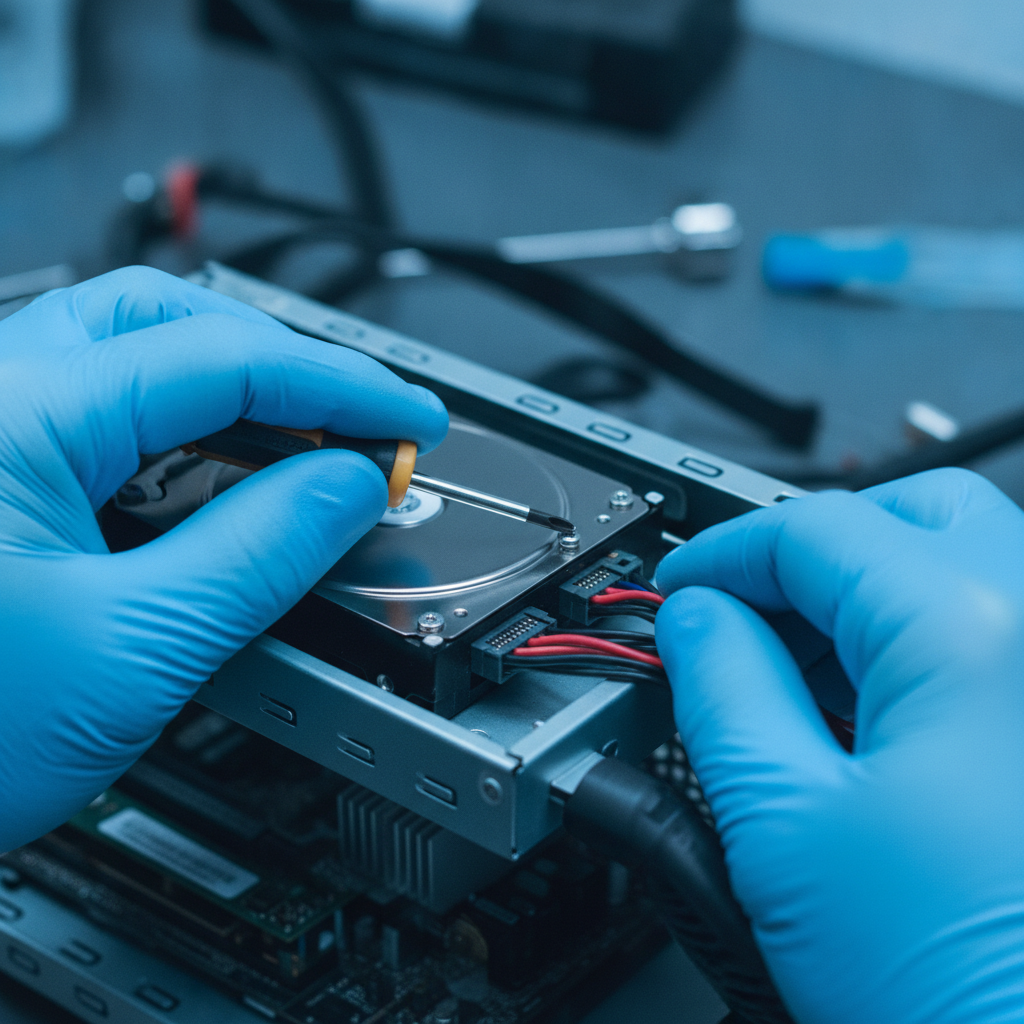
Loose hard drives and solid-state drives should be labelled and protected from impact. Do not place bare circuit boards or drives where they can short against tools, loose screws or other metal. An anti-static bag or padded box is preferable to a loose pile in a vehicle.
How Does Local Computer Recycling Work in Etobicoke?
Quick Scrap Metal is located at 407 Rexdale Blvd in Etobicoke near the Highway 27 and Rexdale area. Its service footprint includes Toronto and the broader GTA, including customers travelling from Mississauga and Brampton. The location gives households and businesses a practical local option for computers, electronics, appliances and scrap metal.
Before leaving, confirm the current hours and whether every item in your load is accepted. The business promotes extended weekday hours and Sunday availability, but hours, receiving procedures and acceptance rules can change. This check is particularly important for CRT displays, large quantities, damaged batteries or commercial equipment.
What to expect at the yard
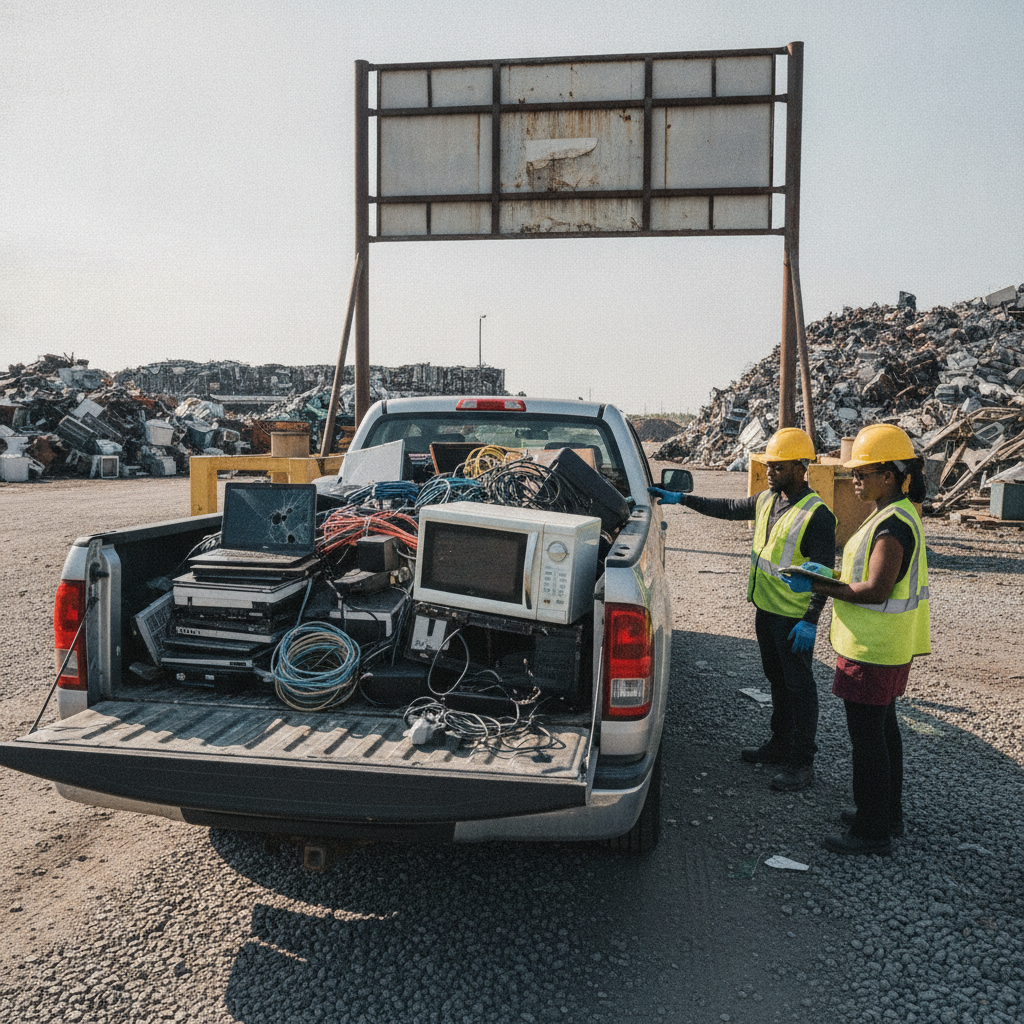
- Arrive prepared: keep electronics boxed or grouped, and separate batteries, monitors and mixed metal so unloading is straightforward.
- Ask where to unload: follow staff directions and keep children away from active vehicle and material-handling areas.
- Sort by category: towers, laptops, displays, accessories and other scrap can be placed in the appropriate area.
- Keep hazardous items separate: tell staff about damaged batteries, leaking equipment or unusual components instead of placing them in a general pile.
- Confirm anything uncertain: if an item is not on the current acceptance list, take it back rather than abandoning it at the site.
For preparation details specific to computers, see the Etobicoke computer recycling centre guide. It is useful when planning a larger load or deciding whether a monitor, accessory or storage device needs special preparation.
Etobicoke loading and weather tips
Use sturdy boxes for small accessories and tie cables into manageable bundles. Place heavier towers on the bottom, protect monitors with padding, and avoid stacking weight on a laptop screen. In winter, keep electronics dry and allow cold equipment to warm gradually before powering it on for a final data check.
For a business cleanout, stage equipment near an exit and record the number of boxes before loading. Separating equipment by department or asset group can make it easier to reconcile an inventory without opening every box at the yard. If you need guidance about a larger electronics load, review the local electronics recycling service information before scheduling the trip.
Which Computer Recycling Option Fits Your Load?
The best route depends on quantity, travel distance, privacy requirements and whether the equipment is still useful. A working, reasonably current laptop may be suitable for reuse or donation after secure data removal. Broken, obsolete or incomplete equipment is generally a better candidate for e-waste processing.
| Option | Best fit | Advantages | Check first |
|---|---|---|---|
| Local drop-off | Several computers, monitors, cables or mixed metal | One trip and direct receiving instructions | Current hours, accepted categories and battery rules |
| Municipal electronic-waste program | Residents with occasional household electronics | Official local disposal route | Location, schedule, quantity limits and residency requirements |
| Reuse or donation | Working equipment that remains useful | Extends product life and may help another user | Data removal, condition and recipient requirements |
| Mail-in service | One small device when travel is difficult | Convenient for a limited shipment | Shipping cost, packaging, accepted devices and data policy |
Ontario’s electronics donation and recycling guidance emphasizes reuse where practical and responsible end-of-life management. For Ontario residents comparing collection points, use current provincial recycling-location information and confirm the site’s rules before travelling.
A nearby scrap yard can be practical when a cleanout includes both computers and metal. The Etobicoke scrap metal recycling service provides a starting point for planning a combined load, while electronics should remain separated until staff provide unloading instructions.
Use the load, not the label, to choose
One working laptop and a box of chargers may be easiest to prepare for reuse. Several towers, broken monitors and loose cables may be more efficiently handled through a local drop-off. A large office refresh needs an inventory and a documented sanitization process before convenience becomes the deciding factor.
Do not choose an option solely because it is nearby. Check whether the receiving point accepts the exact device type, whether it handles batteries separately and whether it has quantity limits. These checks prevent a second trip and reduce the chance that an unsuitable item is left at a collection site.
Computer Recycling Checklists for Homes and Businesses
Household checklist
- List the computers, monitors, chargers, cables and accessories you are bringing.
- Back up files and verify several files from the backup.
- Sign out of accounts and disable tracking or activation locks.
- Choose an appropriate Clear, Purge or Destroy method.
- Remove or separately protect loose drives and removable batteries.
- Bundle cables and place small accessories in labelled boxes.
- Pad monitors and keep screens upright during transport.
- Confirm the receiving site’s current hours and acceptance rules.
Small-business checklist
- Export an inventory containing asset tags, serial numbers and assigned users.
- Back up required business records and verify that the backup can be restored.
- De-provision users, revoke access tokens and remove devices from management systems.
- Apply the organization’s media-sanitization policy to every storage device.
- Record who completed the wipe, removal or destruction step and when.
- Isolate failed drives and label them for the approved secure-handling route.
- Stage equipment on carts near the exit and separate displays from towers.
- Confirm the receiving site can accept the quantity and equipment types.
When a cleanout includes appliances, mixed household scrap or non-computer electronics, the Etobicoke household scrap removal information can help you organize the load. Do not mix unknown chemicals, liquids or damaged batteries with ordinary computer equipment.
What not to do
Do not rely on deleting files, emptying the recycle bin or removing a login password. Do not throw electronics or batteries into household garbage, and do not transport a visibly damaged lithium battery without first obtaining handling instructions. Finally, do not assume that a receiving site accepts every device simply because it accepts computers; displays, printers, batteries and commercial equipment may follow different rules.
How to pack a mixed load
Use one labelled box for small accessories, another for loose drives and separate protection for displays. Keep cables bundled but do not wrap them around screens or place heavy items on laptops. A simple list taped to each box can identify its contents without requiring you to unpack everything at the receiving site.
Tools for Safer Preparation and Data Protection
A small preparation kit reduces avoidable damage. Useful supplies include a sturdy box, padding, painter’s tape, a marker, cable ties, an anti-static bag for loose drives and a non-conductive container for removable batteries. A screwdriver may help with a removable drive, but stop if opening the device could damage a sealed battery or create a safety risk.
For software sanitization, use a reputable tool that supports the specific storage technology and follow its instructions. Traditional hard disk drives and solid-state drives do not behave identically. If the software cannot verify completion, treat the drive as unsanitized and move to a more appropriate Purge or Destroy decision.
Businesses should preserve a simple chain of accountability: device identifier, assigned user, sanitization method, date, person responsible and final disposition. That record is more useful than a vague note saying “deleted.” It also helps an organization identify a failed wipe before the equipment leaves its control.
For ordinary households, the safest decision is often the simplest: if you cannot confirm that the data is gone, keep the drive out of the recycling load until it has been securely handled. Recycling protects materials and the environment, but it does not replace a deliberate privacy process.
When to stop and ask for help
Stop the preparation process if a battery is swollen, hot, leaking or physically damaged. Also stop if a drive contains highly sensitive information and you cannot verify the selected sanitization method. Keep the item isolated from heat and impact, then ask the receiving location or an appropriate specialist for handling instructions rather than improvising.
Frequently Asked Questions
Where can I recycle old computers in Etobicoke?
Quick Scrap Metal is located at 407 Rexdale Blvd in Etobicoke and serves Toronto and the broader GTA. Confirm current hours, accepted equipment and any quantity requirements before travelling, particularly for CRT monitors, batteries or commercial loads.
Should I remove the hard drive before recycling a computer?
Remove the drive if you cannot confidently sanitize it, if it contains sensitive information, or if your organization’s policy requires separate destruction. Otherwise, use an appropriate sanitization method for the drive type and verify completion before drop-off.
Can I recycle laptops, monitors and cables together?
These items are commonly treated as computer-related e-waste, but receiving rules can differ by site and item type. Keep laptops, displays, cables and batteries separated in your vehicle and confirm the current acceptance list before unloading.
Is donating a working laptop better than recycling it?
If the laptop is functional, secure, reasonably current and useful to another person, reuse or donation can extend its life. If it is broken, obsolete or unsuitable for reuse, e-waste recycling is the appropriate next step after protecting the data.
Plan Your Computer Recycling Drop-Off
Start by identifying every device, protecting your files and choosing the right data-sanitization method. Then box accessories, protect displays, separate batteries and confirm the receiving site’s current rules. These steps make e-waste computer recycling safer, faster and easier to document.
For a mixed electronics or metal load, use the broader Etobicoke and GTA e-waste recycling guide to continue planning. When you are ready to confirm location details or ask about a load, contact Quick Scrap Metal before your visit.